How to add an AI chatbot to Webflow
You want to embed your custom trained AI support agent in your Webflow website page. Here’s how to add an AI support agent to Webflow with AI Chatbot.
Webflow is a professional visual web design platform that allows users to build, launch, and manage high-performance, responsive websites without writing code.
Add your AI support agent to your Webflow website
In AI Chatbot
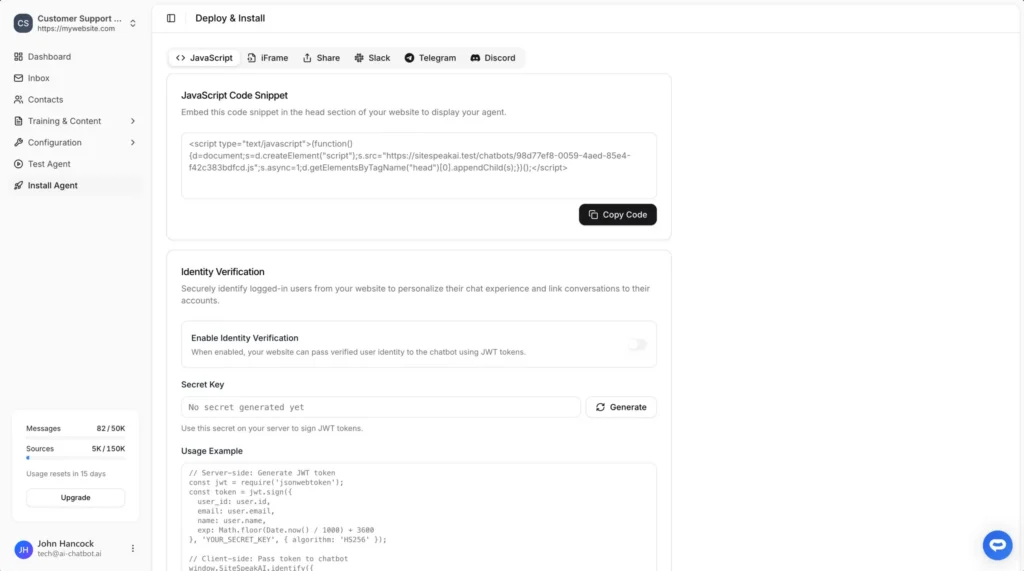
Select your chatbot from the dropdown menu at the top, click on the Install Agent section in the sidebar, then click on the Copy Code button to copy your code snippet.
In Webflow
Please note! Adding your AI support agent to Webflow can be achieved in two ways, i.e. Globally (site-wide) or Page-specific. We will be looking at both options.
A. Adding your AI support agent globally (site-wide)
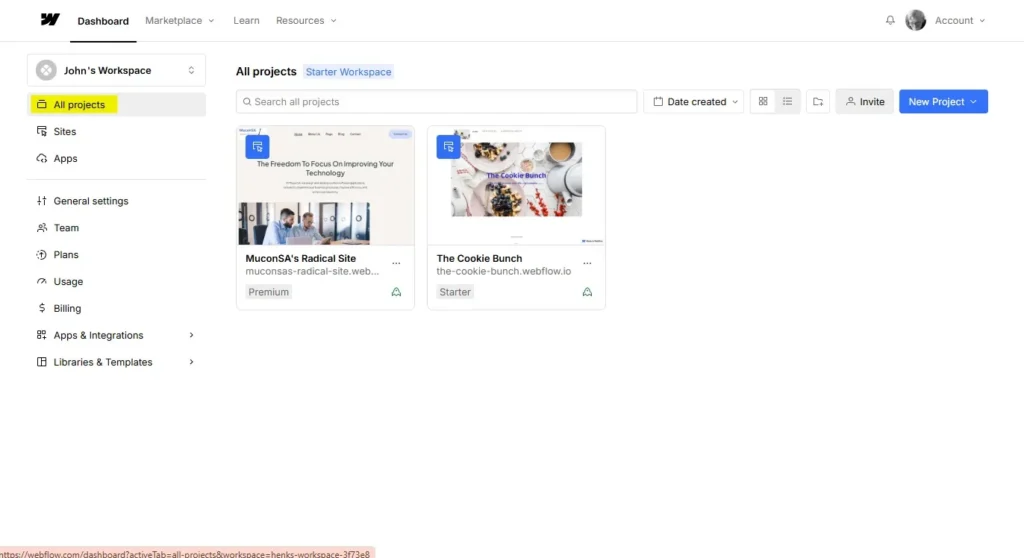
- Log into your Webflow account and make sure All projects is selected
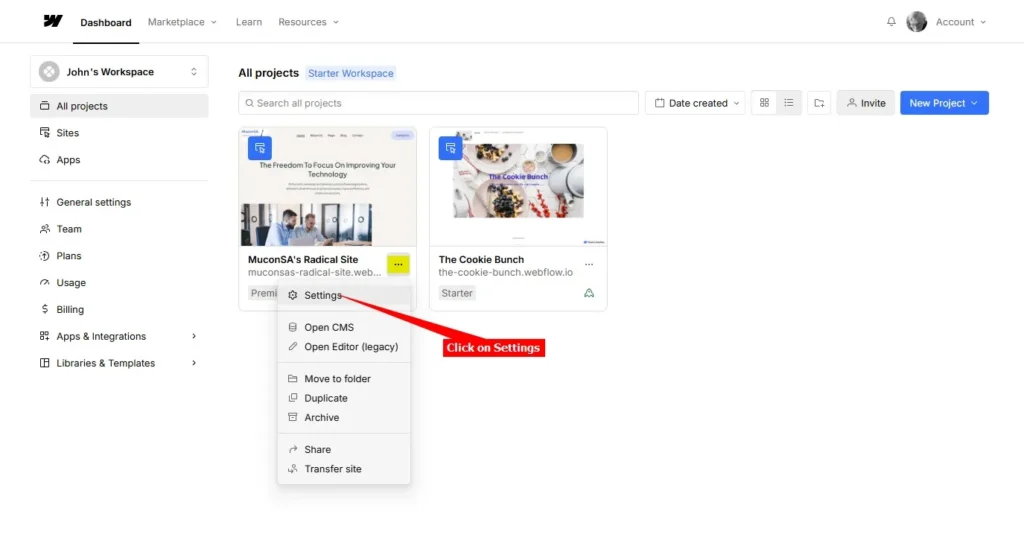
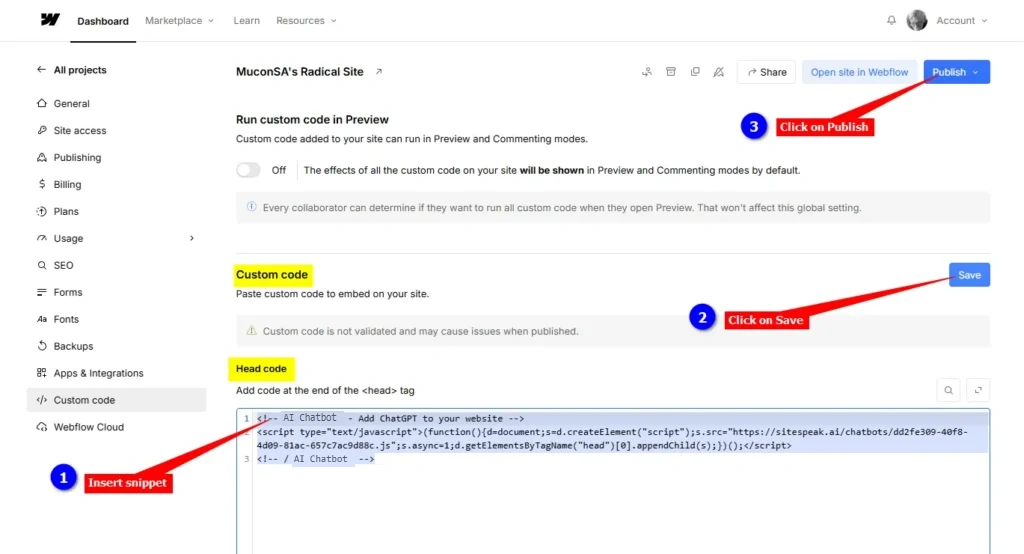
- On the Project you want to add your agent to, select Settings on the Project card
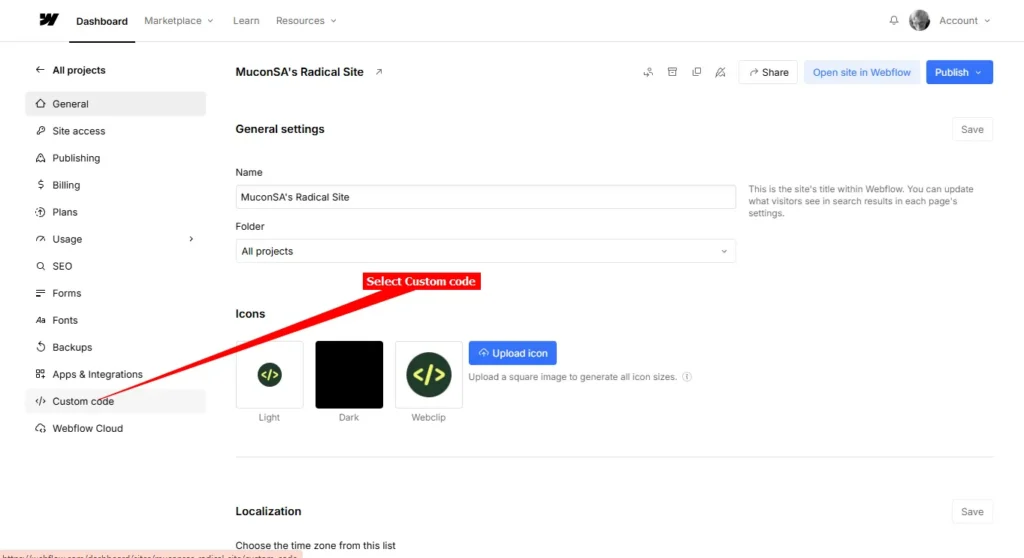
- Select Custom code on the left side-bar
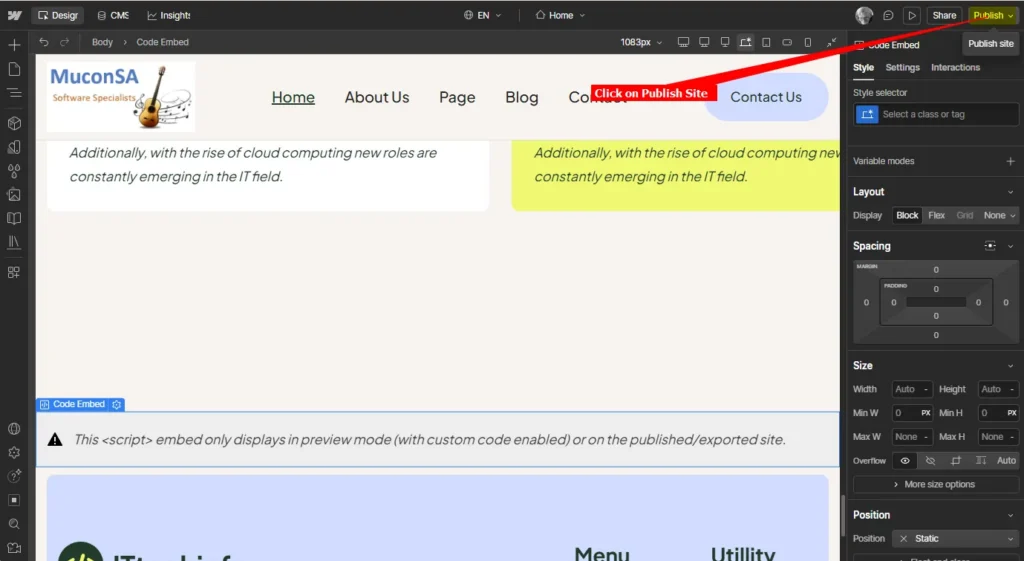
- Scroll down to Custom code, insert your snippet under Head code , click on Save and then Publish to publish your website
B. Adding your AI support agent per page
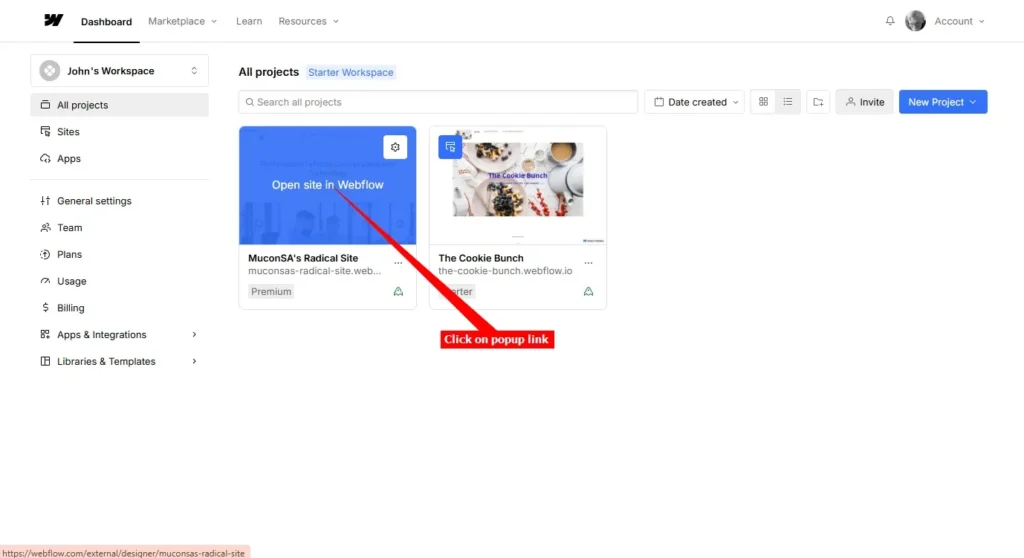
- Log into your Webflow account and make sure All projects is selected
- On the Project you want to add your agent to, move your mouse over the Project card and click on the Open site in Webflow popup link
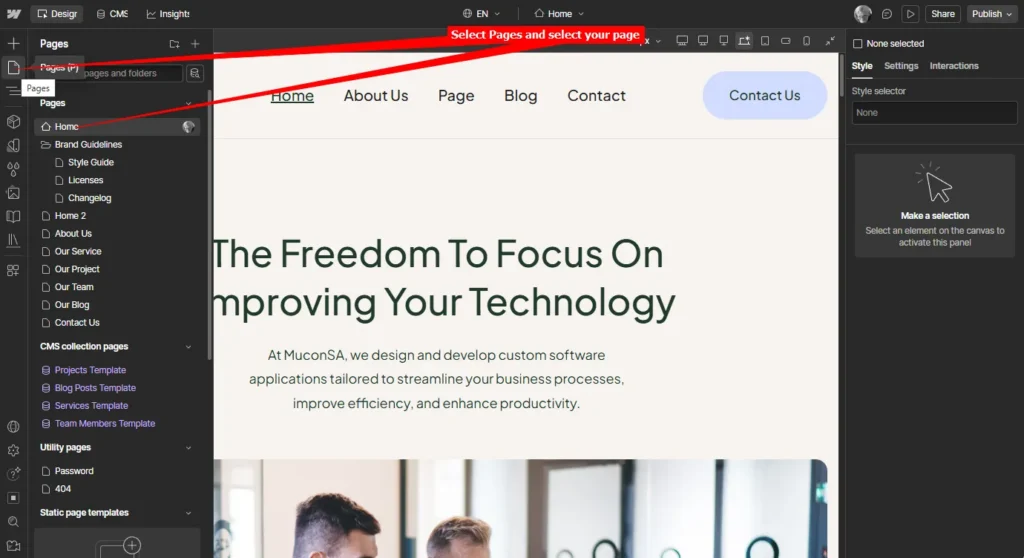
- Under Pages, select the page you want to add your support agent to
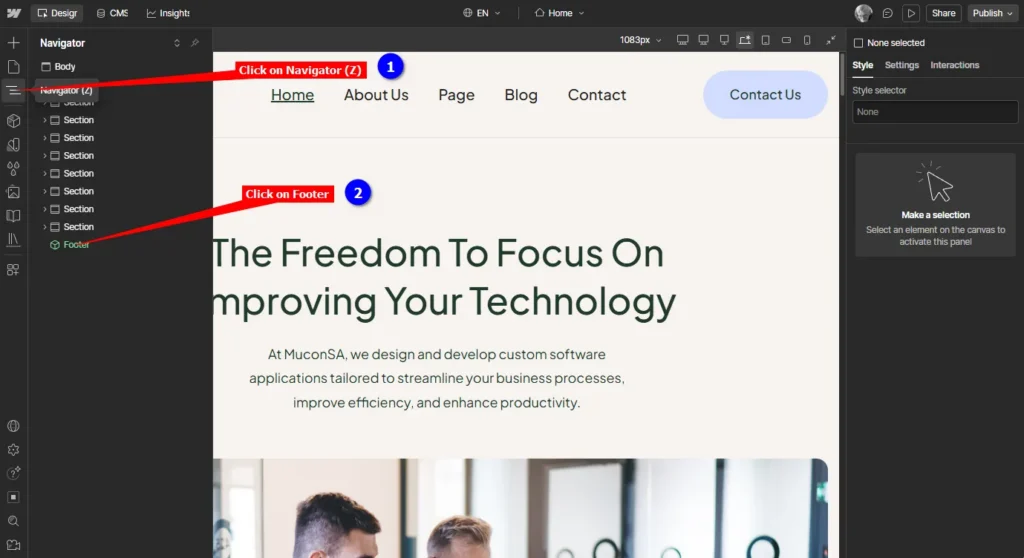
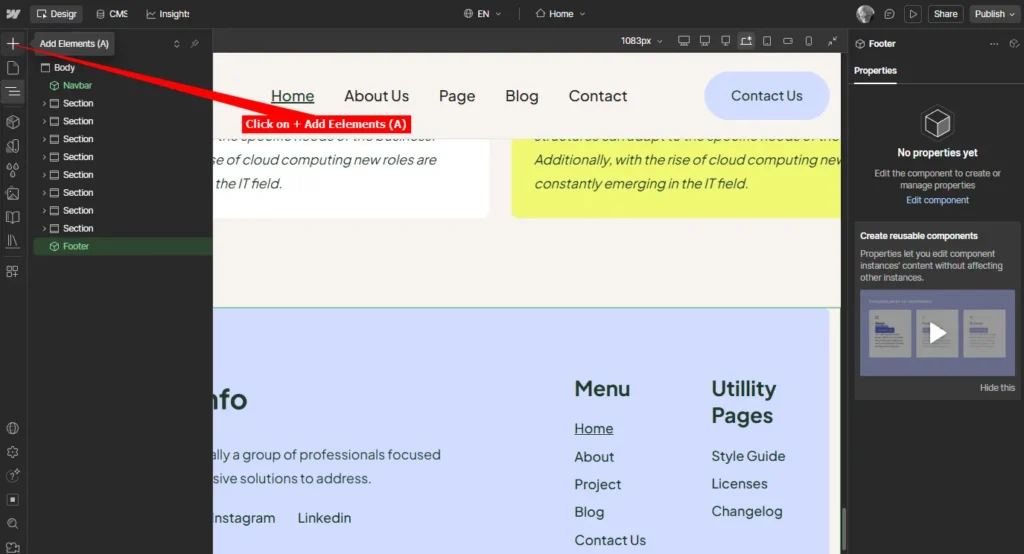
- When page displays, click on Navigator (Z) and then click on Footer to display the Footer section of the page
- While the Footer section is visible, click on + Add Elements (A)
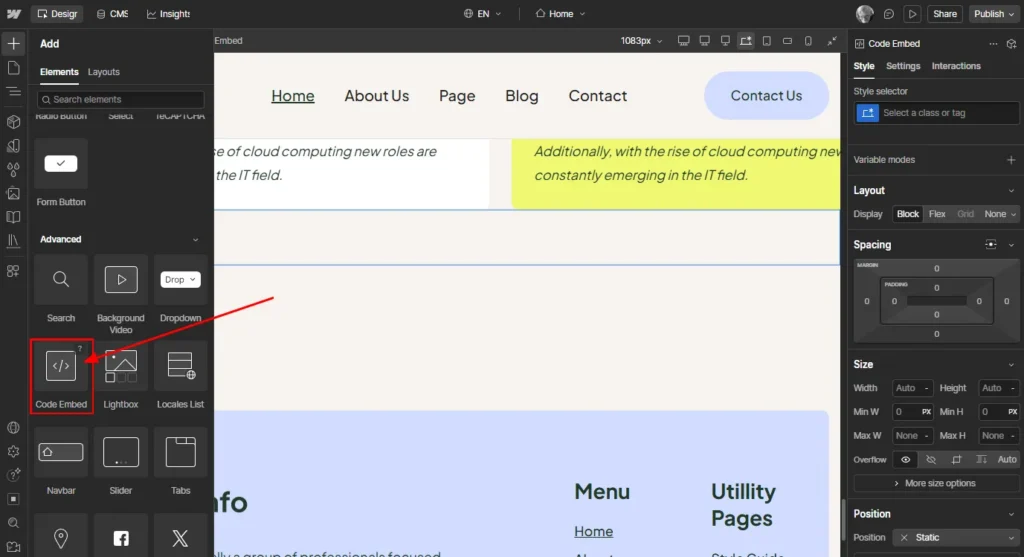
- Scroll down on the list of Elements until you find Code Embed
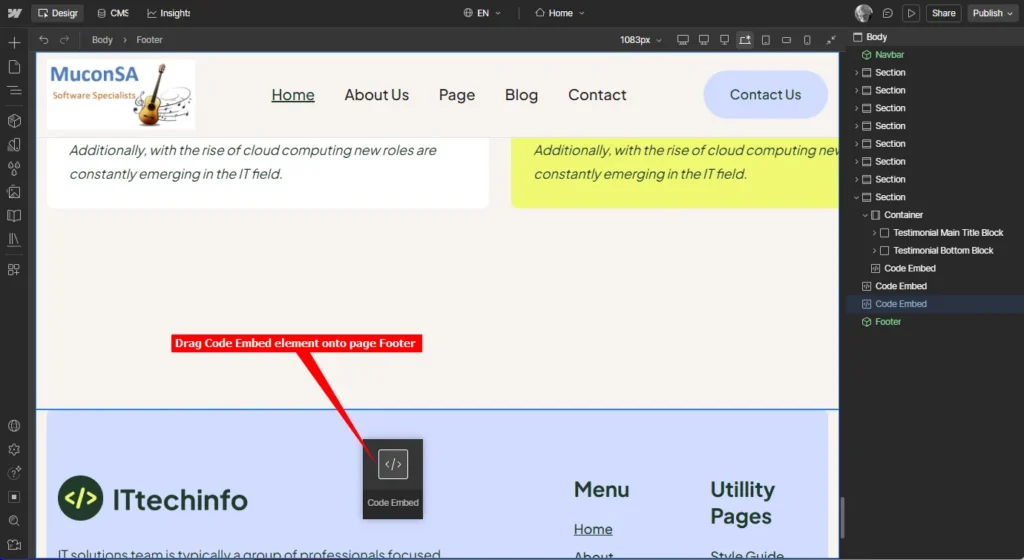
- Drag the Code Embed element onto the page Footer
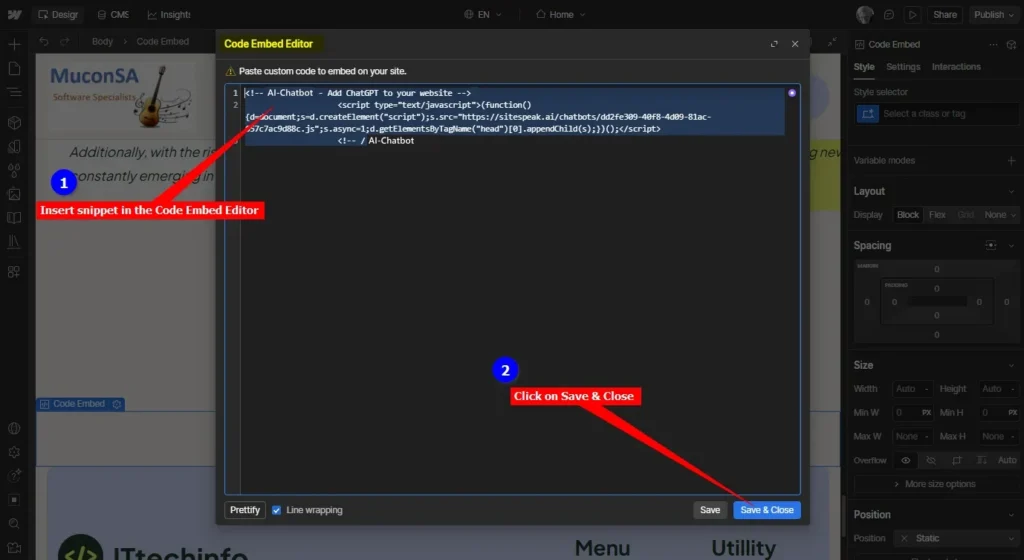
- Insert snippet in the Code Embed Editor and click on Save & Close
C. For both options
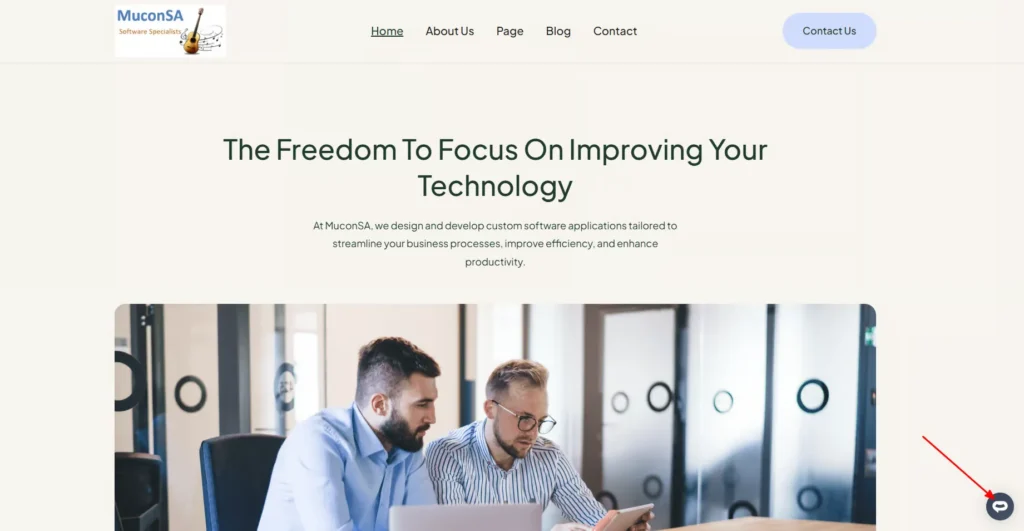
- Your AI support agent button will now be displayed on your Webflow website page
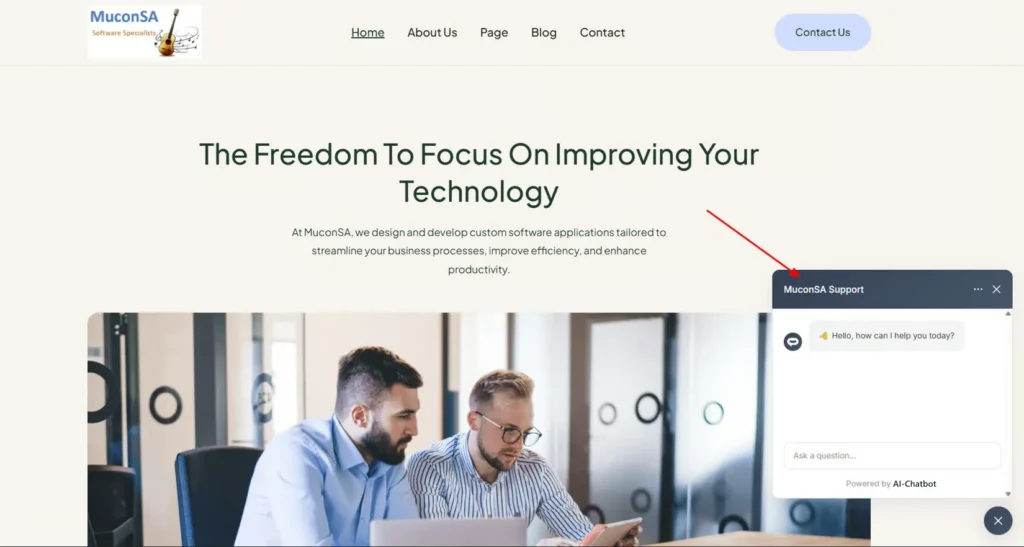
- If you click on the button it will display the AI support agent dialogue
Your AI support agent has now been added to your Webflow website and your visitors/customers can start interacting with it!
Join over 1000+ businesses, websites and startups automating their customer service and other tasks with a custom trained AI agent.