How to add an AI chatbot to MotoCMS
You want to embed your custom trained AI support agent in your MotoCMS website page. Here’s how to add an AI support agent to MotoCMS with AI Chatbot.
MotoCMS is a website builder that’s a bit different from the usual drag-and-drop options like Wix or Squarespace. It’s designed for more complex websites, think online stores, portfolios, and sites with lots of interactive elements. It combines a visual editor with a powerful backend meaning you can easily build the front-end (what visitors see) with a simple interface, but then you can also manage the back-end, things like databases, SEO, and integrations, using a more technical panel.
Website URL: MotoCMS
Add your AI support agent to your MotoCMS website
In AI Chatbot
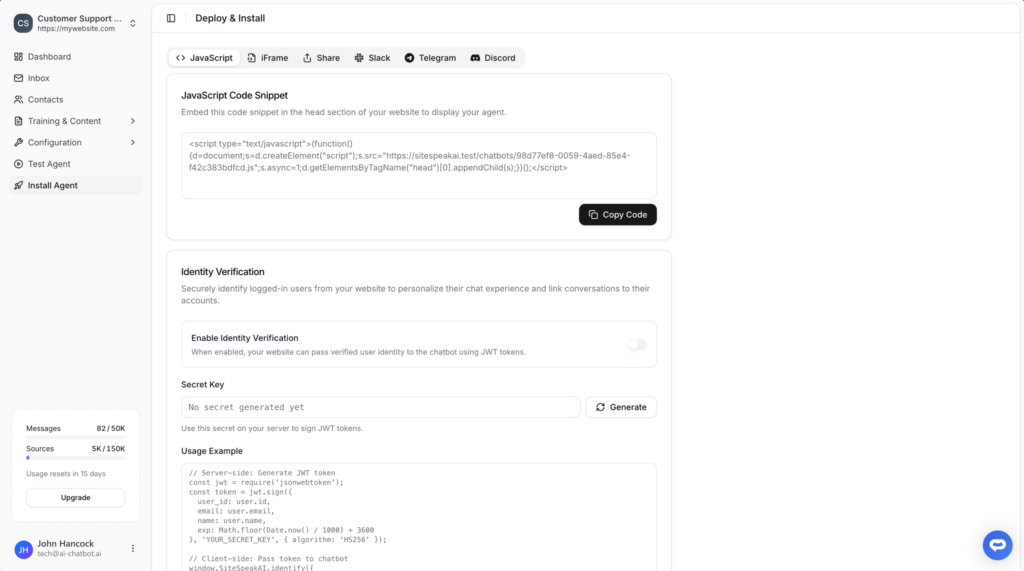
Select your chatbot from the dropdown menu at the top, click on the Install Agent section in the sidebar, then click on the Copy Code button to copy your code snippet.
In MotoCMS
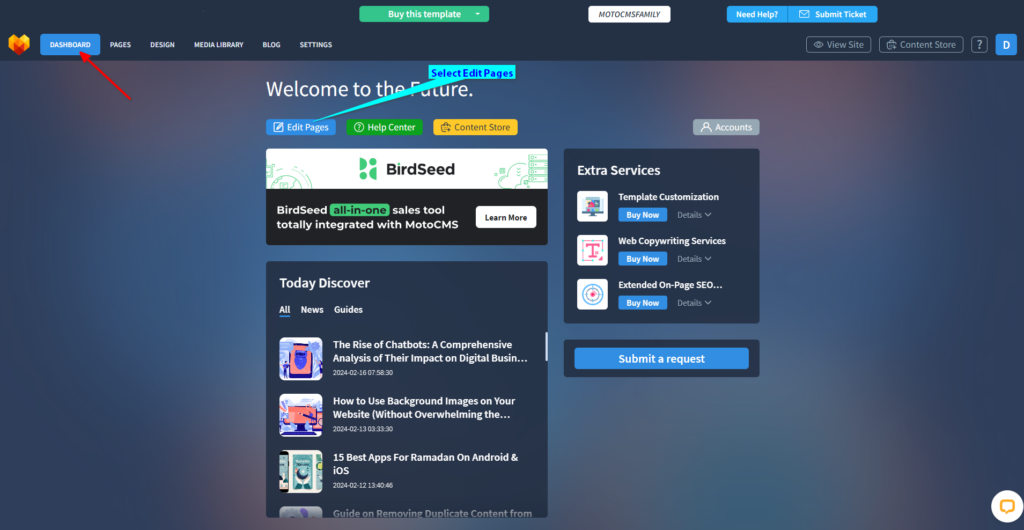
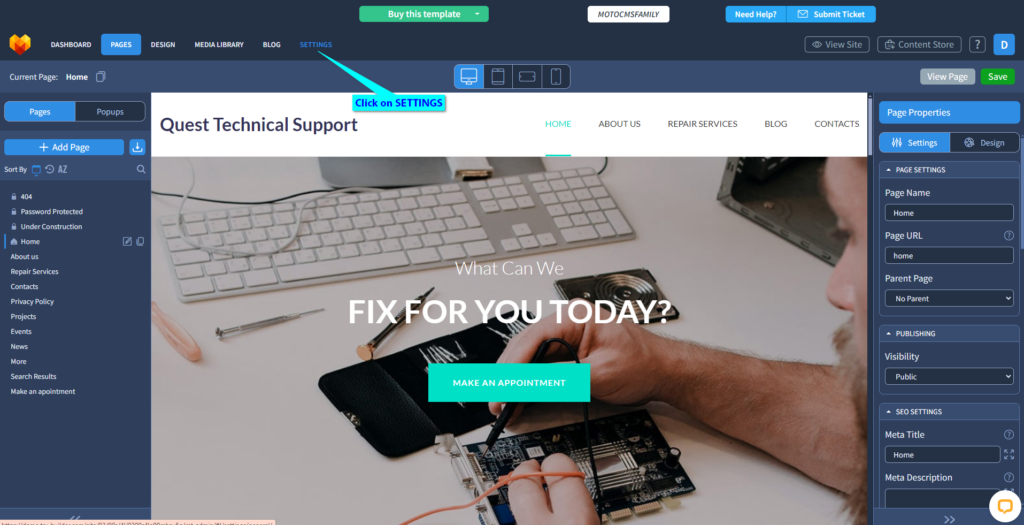
- Log in to your MotoCMS website builder dashboard and select Edit Pages
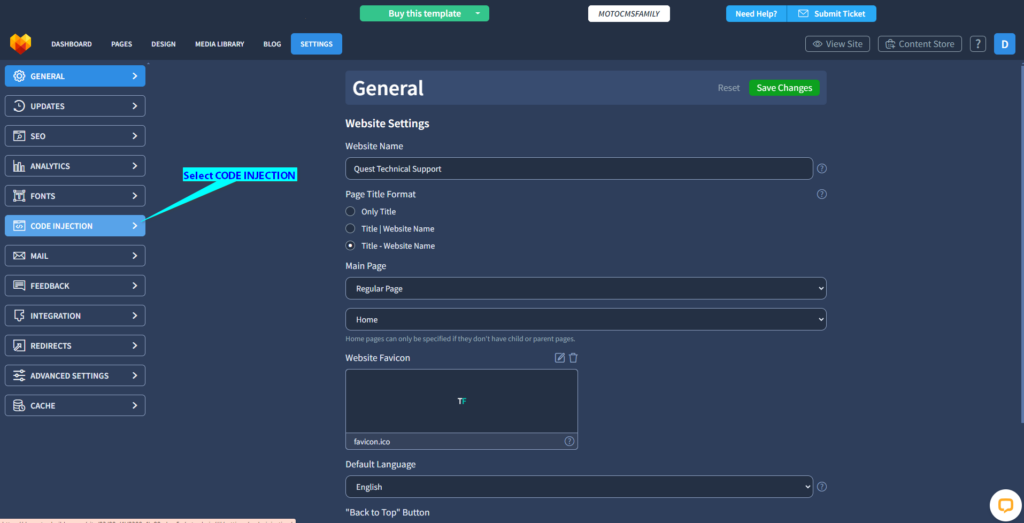
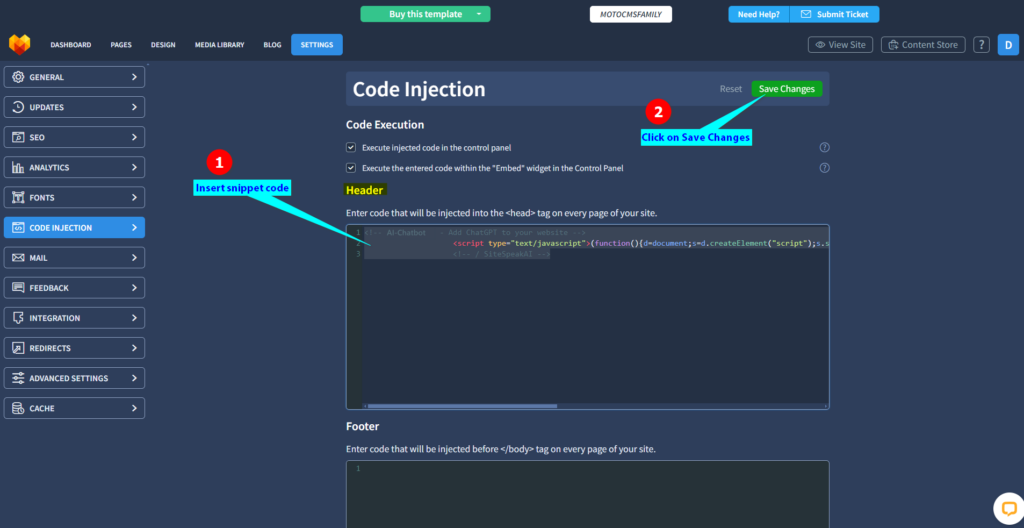
- Insert your snippet code under Header and click on Save Changes
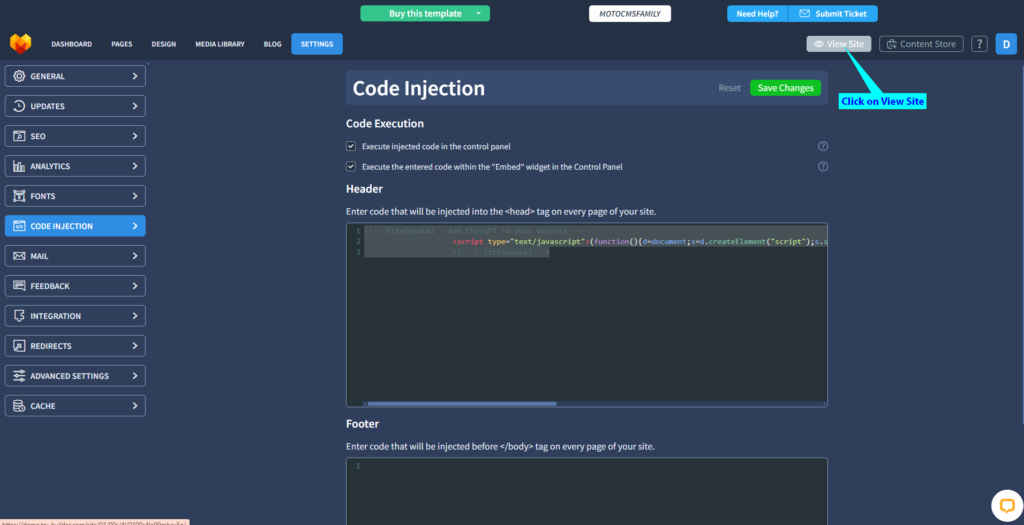
- Click on View Site to view your page
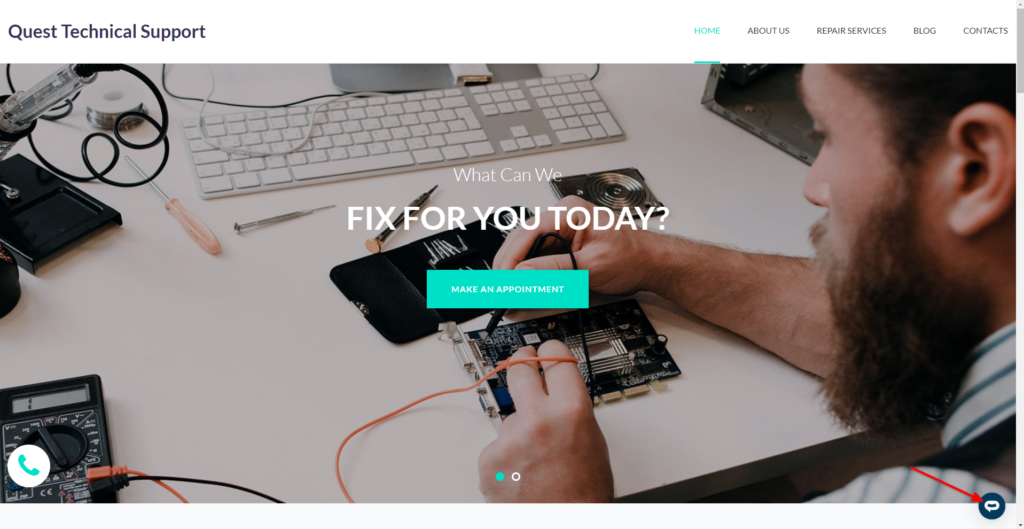
- Your AI support agent button will now be displayed on your MotoCMS website page
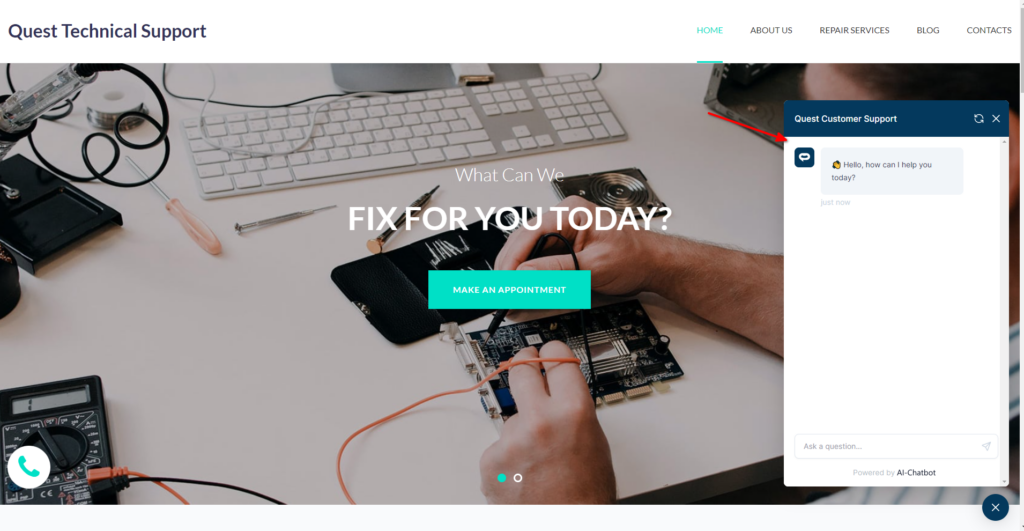
- If you click on the button it will display the AI support agent dialogue
Your AI support agent has now been added to your MotoCMS website and your visitors/customers can start interacting with it!
Join over 1000+ businesses, websites and startups automating their customer service and other tasks with a custom trained AI agent.