
Configure your chatbot to support multiple languages and customize all interface text for each language.
In your chatbot dashboard, click Configuration in the sidebar.
Click on the Settings tab.
Go to Localization tab
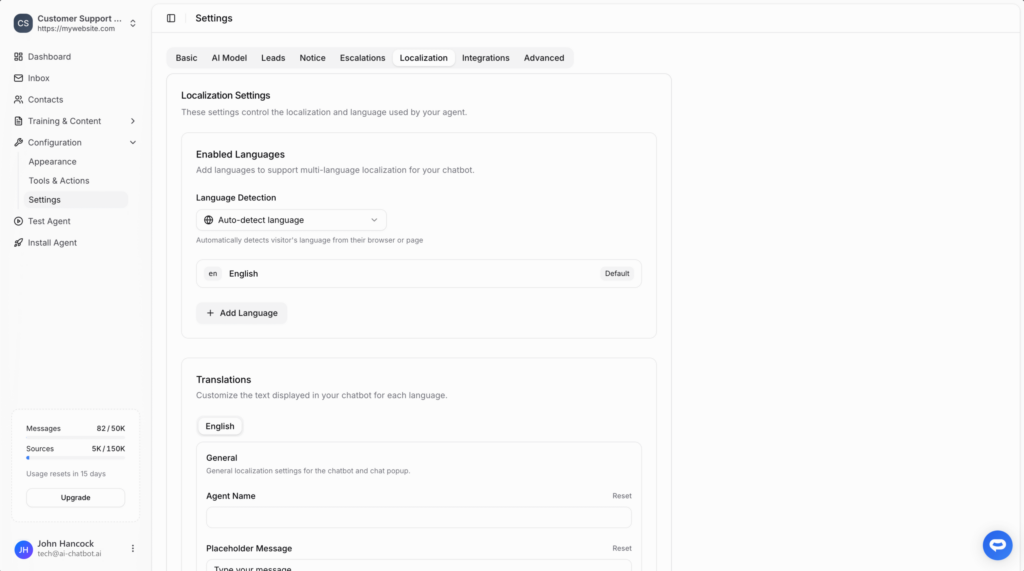
Add multiple languages to support visitors from different regions. Your chatbot will display all labels and messages in the visitor’s preferred language.
Choose how your chatbot determines which language to display:
Click Add Language
In the Enabled Languages section, click the + Add Language button.
Enter language details
Specify the language code (e.g., fr for French, de for German) and language name.
Click Add
Click the Add button to add the new language.
One language is marked as Default. This is used when:
Customize all text displayed in your chatbot for each language. This ensures a fully localized experience for your visitors.
menu – aria-label / tooltip on the … buttonnew_chat – “Start New Chat” item and the floating pill in Recent Chatsview_recent_chats – “Recent Chats” itemdelete_chat – “Delete Chat” itemrecent_chats – header title in the recent-chats viewno_conversations – empty state when there are no past conversationsback – aria-label on the back arrowSee Visitor Recent Chats for what these labels control.
Select a language
In the Translations section, click on the language tab you want to edit (e.g., English, French).
Update the text fields
Modify any of the text fields. Each field has a Reset button to restore the default text.
Save your changes
Click the Save button to store your translations.
You can add as many languages as you need. Each language gets its own complete set of customizable text fields.
Escalation notification emails sent to your team can also be localized. These emails are sent in your chatbot’s default language when a visitor requests human assistance.
Full URL to the visitor’s inbox
The visitor’s last message
Name of the chatbot
{{chatbot_name}}: Visitor needs human assistanceHello!Visit your [inbox]({{inbox_link}})The introduction message field supports markdown, so you can include links like [inbox]({{inbox_link}}) that will render as clickable links in the email.
Beyond interface localization, your chatbot’s AI can understand and respond in virtually any language:
The AI supports all major languages including:
Interface localization (labels and buttons) requires you to configure each language. AI responses work in any language automatically.
en-US and en-GB if needed