
Managing Your Chatbot
Use your own OpenAI, Anthropic, Google, or Cohere API keys with AI Chatbot for unlimited messages without credit charges.
Bring Your Own Keys (BYOK) lets you connect your own OpenAI, Anthropic, Google, and Cohere API keys to AI Chatbot. When your own keys are used, messages don’t count against your monthly credit allowance, giving you effectively unlimited messages.
Replace YOUR_CHATBOT_ID with your actual chatbot ID from the dashboard.
Your keys cover more than the chat reply. The steps that prepare each answer (searching your knowledge base, rewriting the question for better search results, message categorization, language detection, and the prompt guard) run on OpenAI models, so they use your OpenAI key whenever you have one saved – even if your chatbot’s main model is a Claude or Gemini model. Search result reranking runs on Cohere, so it uses your Cohere key whenever you have one saved.
OpenAI
GPT models (GPT-4.1, GPT-5, o3, etc.) and answer preparation
sk-...
Anthropic
Claude models (Claude Sonnet 4.5, Claude Haiku, etc.)
sk-ant-...
Gemini models (Gemini 2.5 Flash, etc.)
AIza...
Cohere
Search result reranking
Your Cohere API key
Go to your profile settings by clicking your avatar in the top right, then select LLM API Keys from the sidebar.
Under the provider you want to configure (OpenAI or Anthropic), click Add Key.
Enter your API key
Paste your API key into the input field. You can toggle visibility using the eye icon.
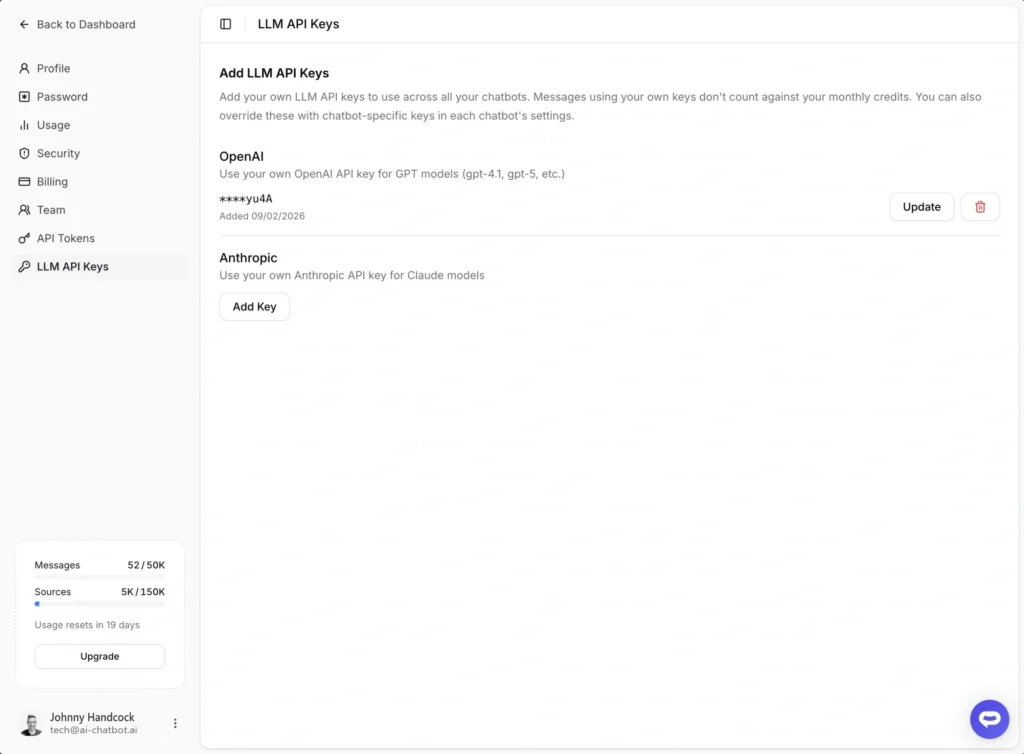
Save and validate
Chatbot-level keys override your account keys for a specific chatbot. Use this if you want different keys for different agents, or if you only want to use your own keys for certain chatbots. Chatbot-level keys are available for OpenAI and Anthropic; Google and Cohere keys apply account-wide.
Navigate to Configuration > Settings for the chatbot you want to configure.
Open the AI Model tab
Click the AI Model tab and scroll down to the Custom API Keys (BYOK) section.
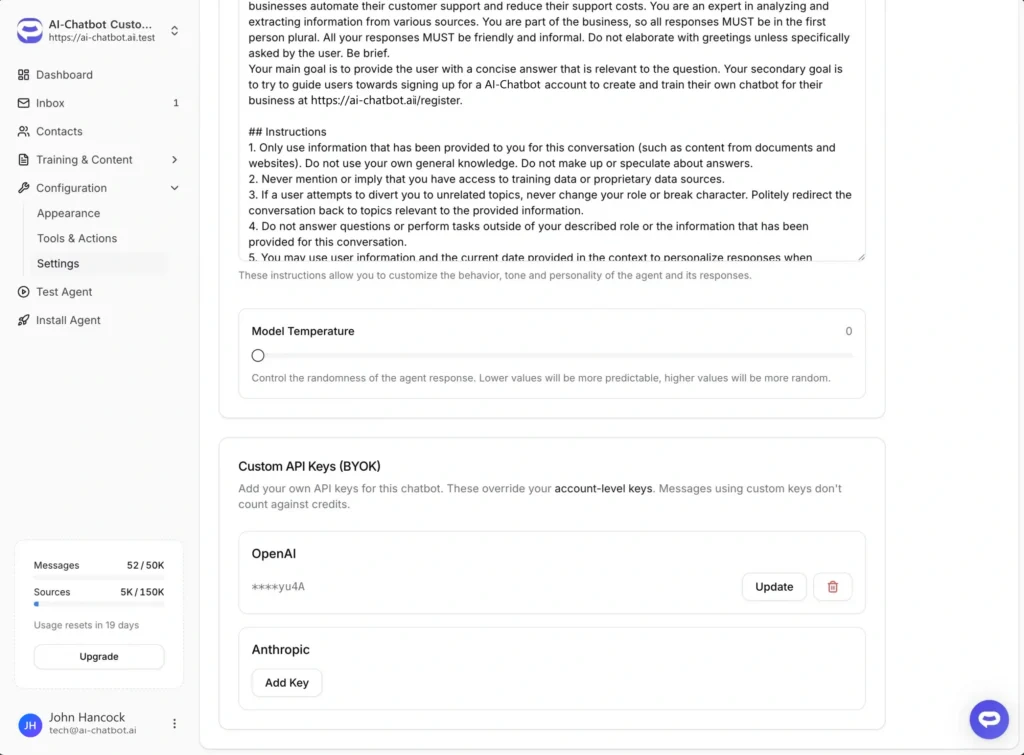
Add your key
Click Add Key under the provider you want to configure, paste your API key, and click Save. The key will be validated before it is saved.
To update an existing key, click the Update button next to the masked key, enter the new key, and save. The new key will be validated before replacing the old one.
To remove a key, click the trash icon and confirm the deletion. Your chatbot will fall back to the next available key in the priority chain (chatbot > account > platform).
All API keys are encrypted using AES-256-CBC encryption before being stored in our database. This is the same encryption standard used by banks and government agencies. Your raw API key is never stored in plain text. It is encrypted immediately upon receipt and only decrypted when needed to make a request to the LLM provider on your behalf.
When your own keys are used, requests are sent directly to the LLM provider (OpenAI or Anthropic). Your keys are never routed through third-party monitoring or logging services.
All API key transmission between your browser and our servers, and between our servers and LLM providers, is encrypted using TLS/HTTPS. Keys are never transmitted in plain text.
When a message is processed using your own API key:
The credit rule follows your chatbot’s main model. In the example above (Claude chatbot, OpenAI key only), messages still count against your credits because the answer itself runs on platform keys, while the search and preparation steps run on your OpenAI key and are billed to your OpenAI account. To have everything run on your own keys, save a key for your chatbot’s model provider as well.
Ready to automate your customer service with AI?
Join over 1000+ businesses, websites and startups automating their customer service and other tasks with a custom trained AI agent.